 ← Back

List Import - Bitrix24 CRM
Import or update List records in the Bitrix24 CRM Company section
← Back
Import or update List records in the Bitrix24 CRM Company section

This module allows you to quickly import new company records or update existing ones in the Company section of Bitrix24 CRM, helping you maintain accurate and up-to-date business information.
1. This module allows importing new records into the List section andupdating existing ones. For new List items, add them to the List section andleave the ID column blank. To update existing records, enter the List Item'selement ID in the ID column. Use the pipe symbol (||) to separate multiplefield values.
2. Select the relevant List Item and upload the CSV file. Then, click "Next Step." You can download the sample file for reference.If downloaded import sheet contain all the fields in single column with comma separated, please convert to comma delimited with separate column. Please refer the attached pdf with steps to convert single column comma separated fields to separate tab Click here to view
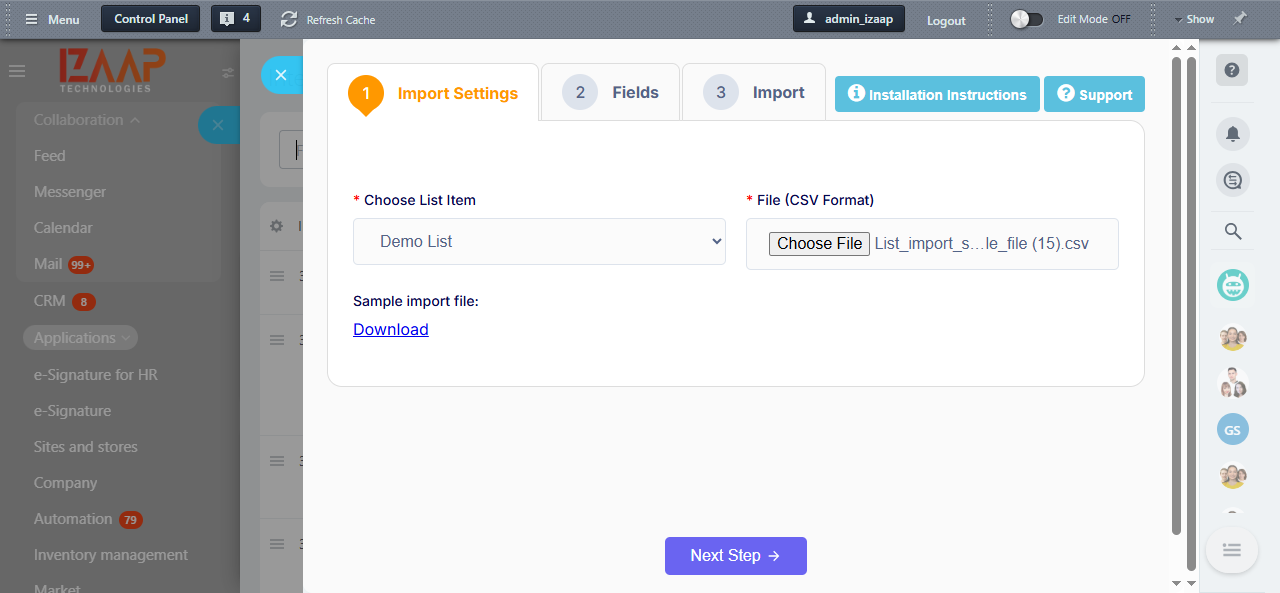
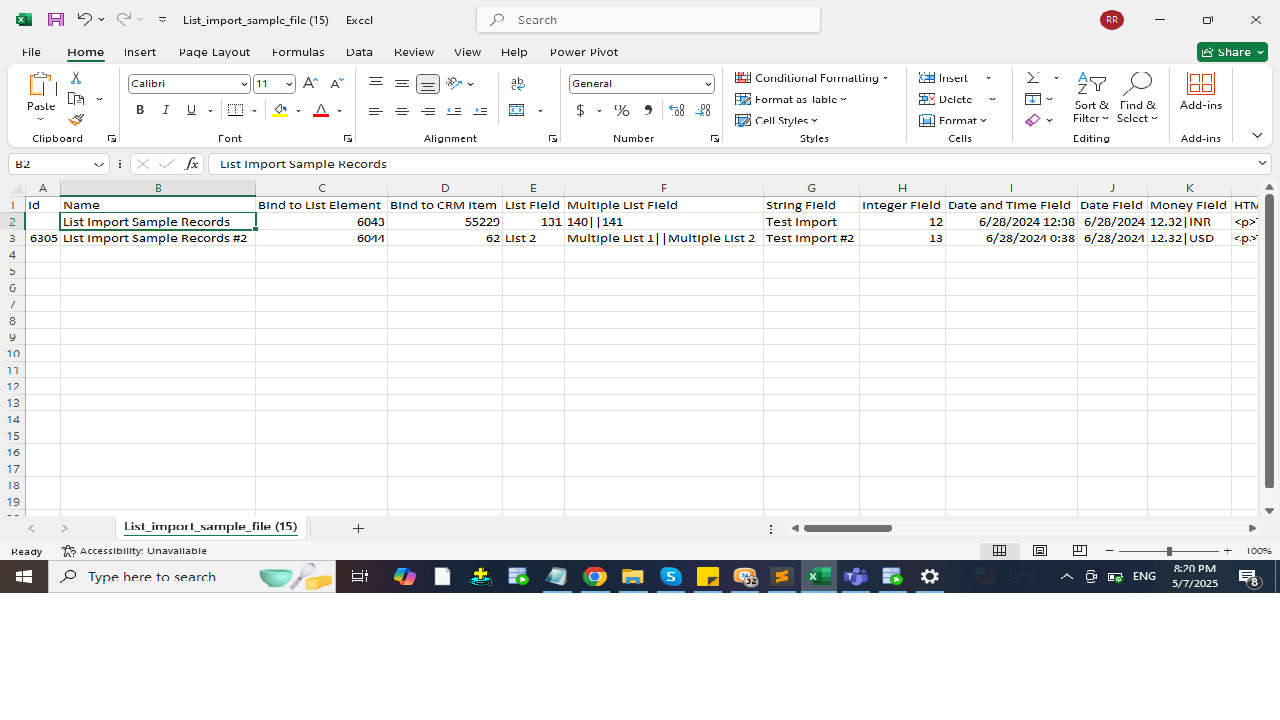
3. Map the Excel fields to the system fields. A preview of your imported datais shown in the grid view. Make sure to check all the information beforeproceeding with the import process.
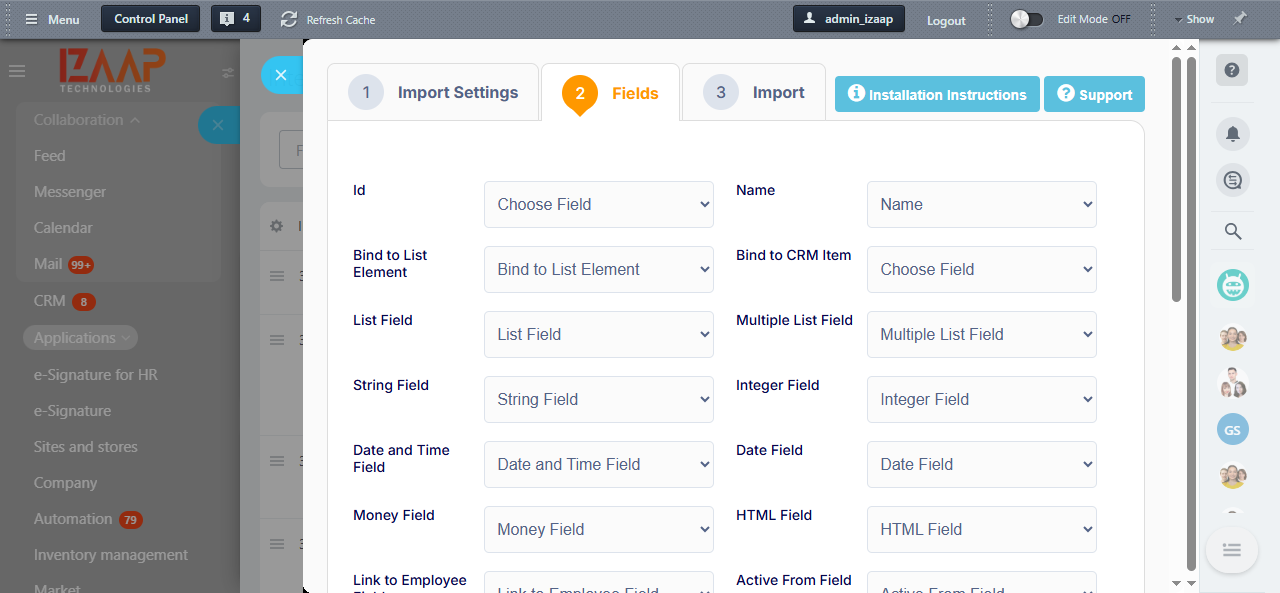
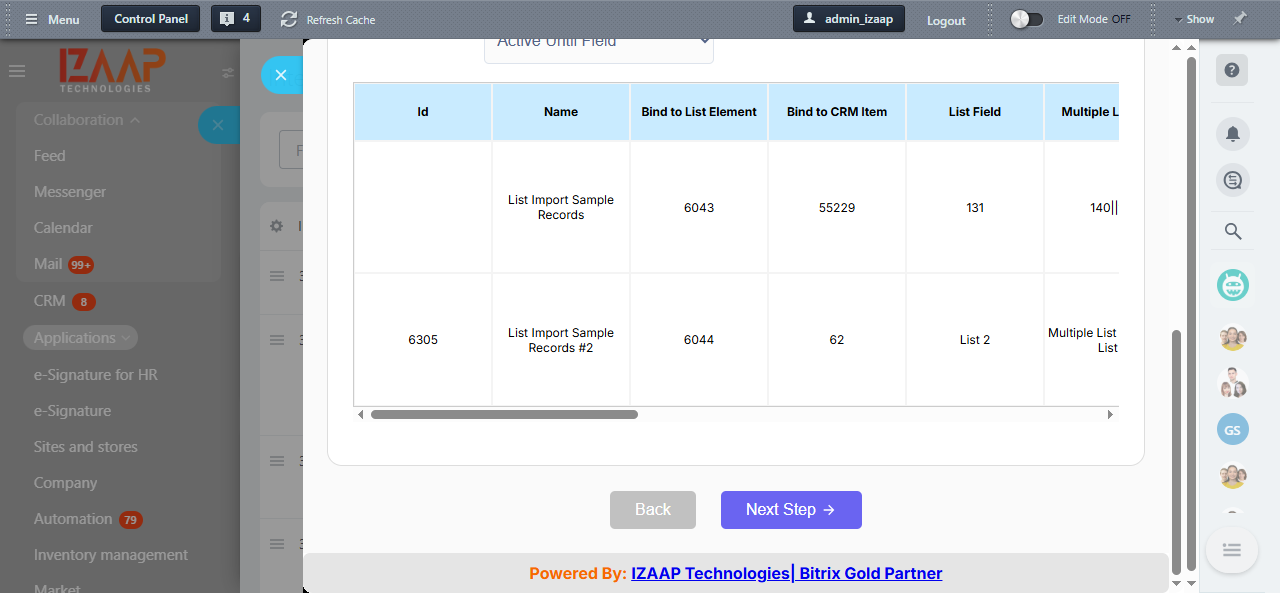
4. Submit the import file and track the count of imported or failed records.
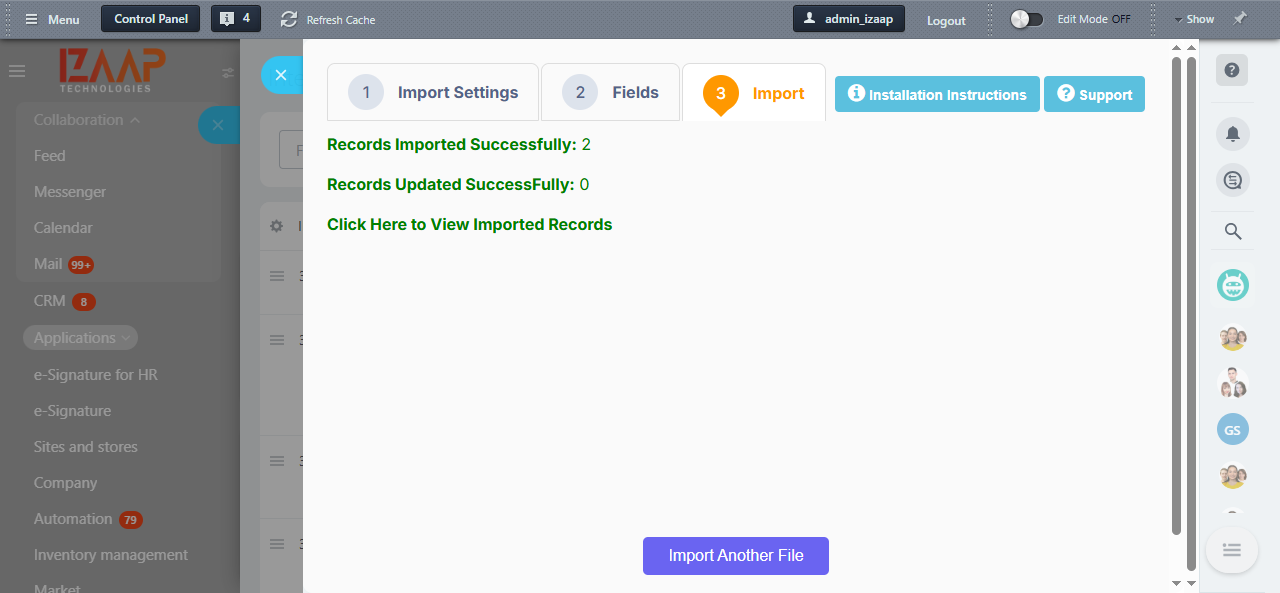
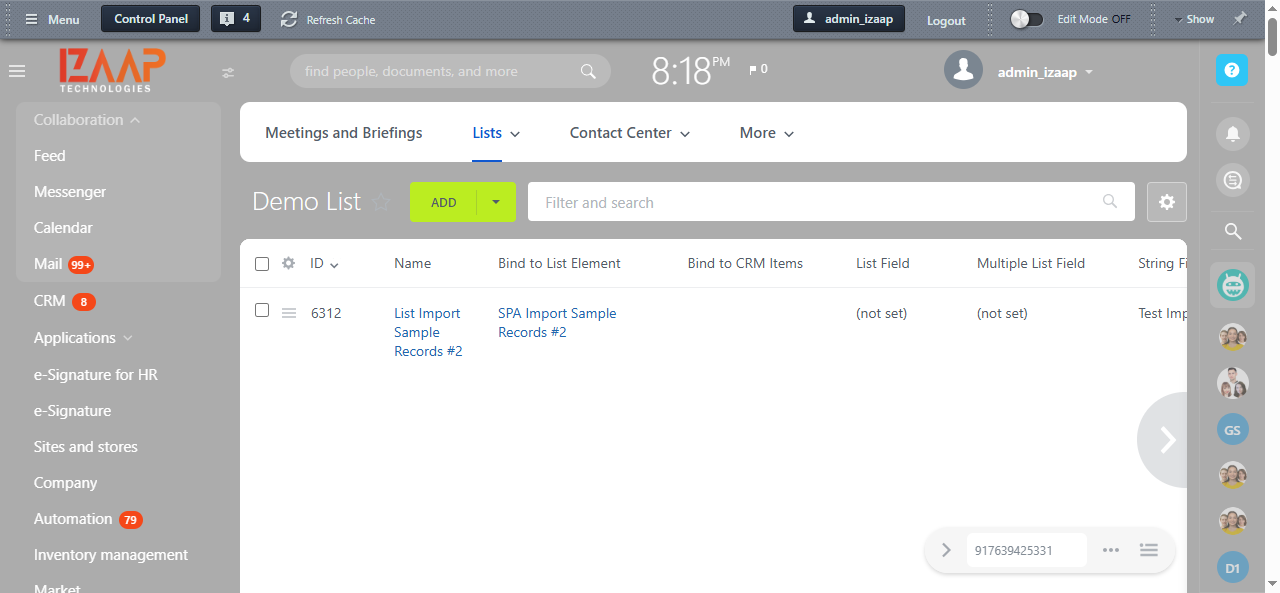
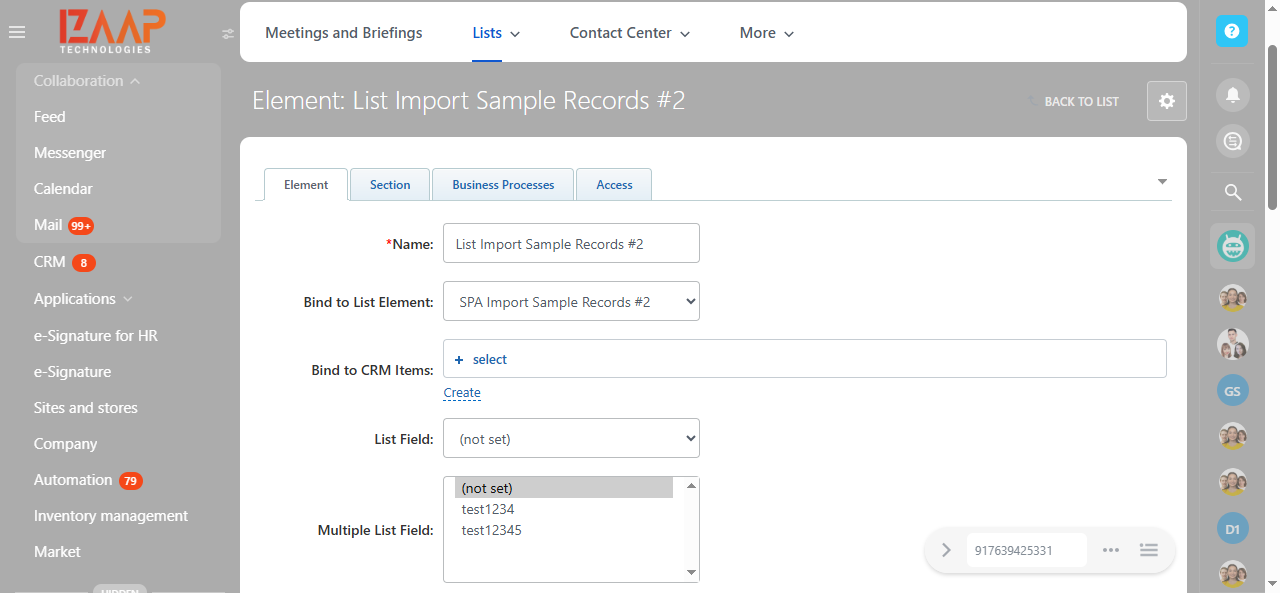
5.Click the "Click Here to View Imported Records" option in the final step of the import process to see the imported records.
6.To proceed with the next set of imports, click the import another file button.
Note: Maximum number of column allowed per hit is 50. If you want to upload huge file please use batch import concept and import 50 records each hit.