← Back

Bitrix24 Integration

Send Plivo SMS from Bitrix directly
Plivo app to connect your Plivo SMS Service with Bitrix24 and manage customer conversations seamlessly within your CRM. Streamline communication, automate replies, and deliver real-time support all from one place.
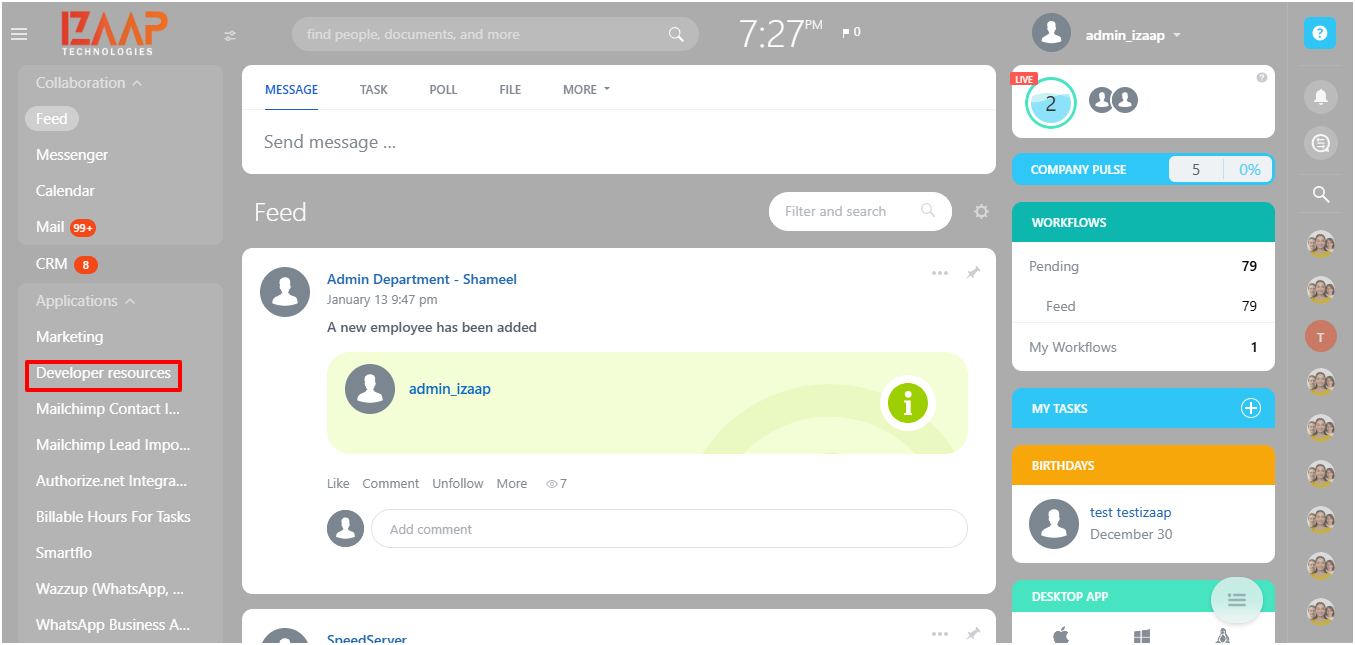
1.Log in to the Bitrix application and click on the left-side menuDeveloper Resources.
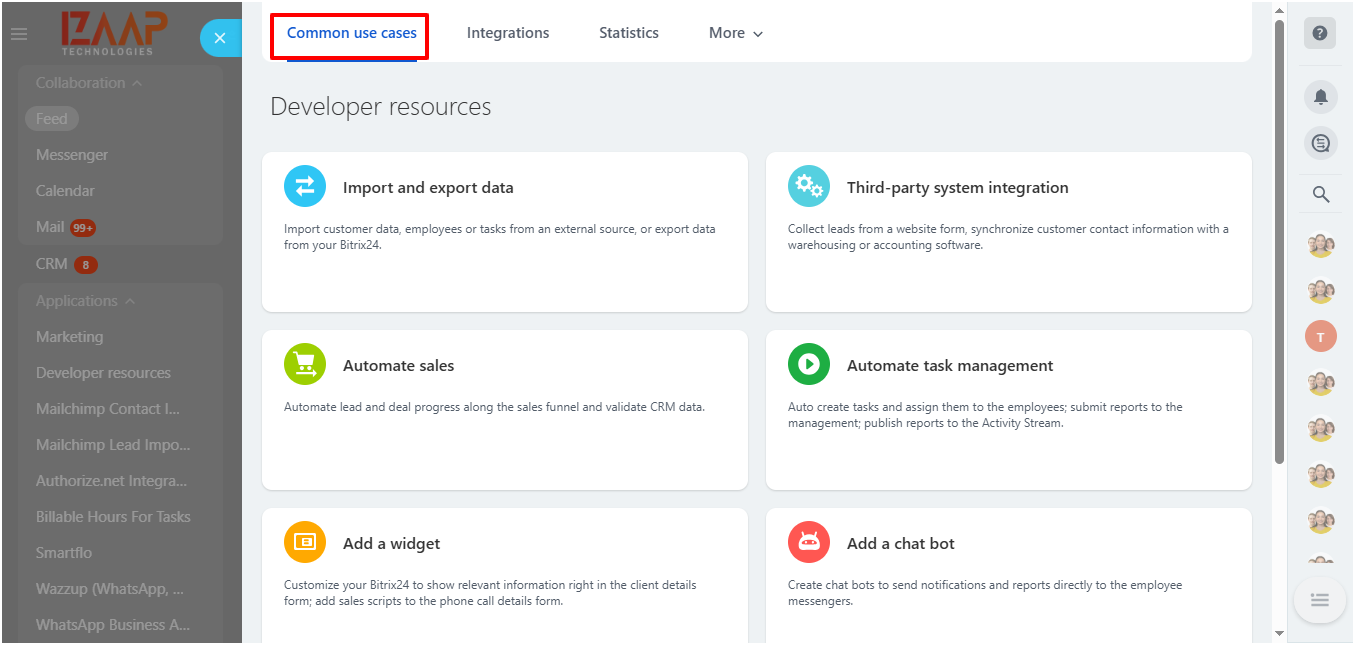
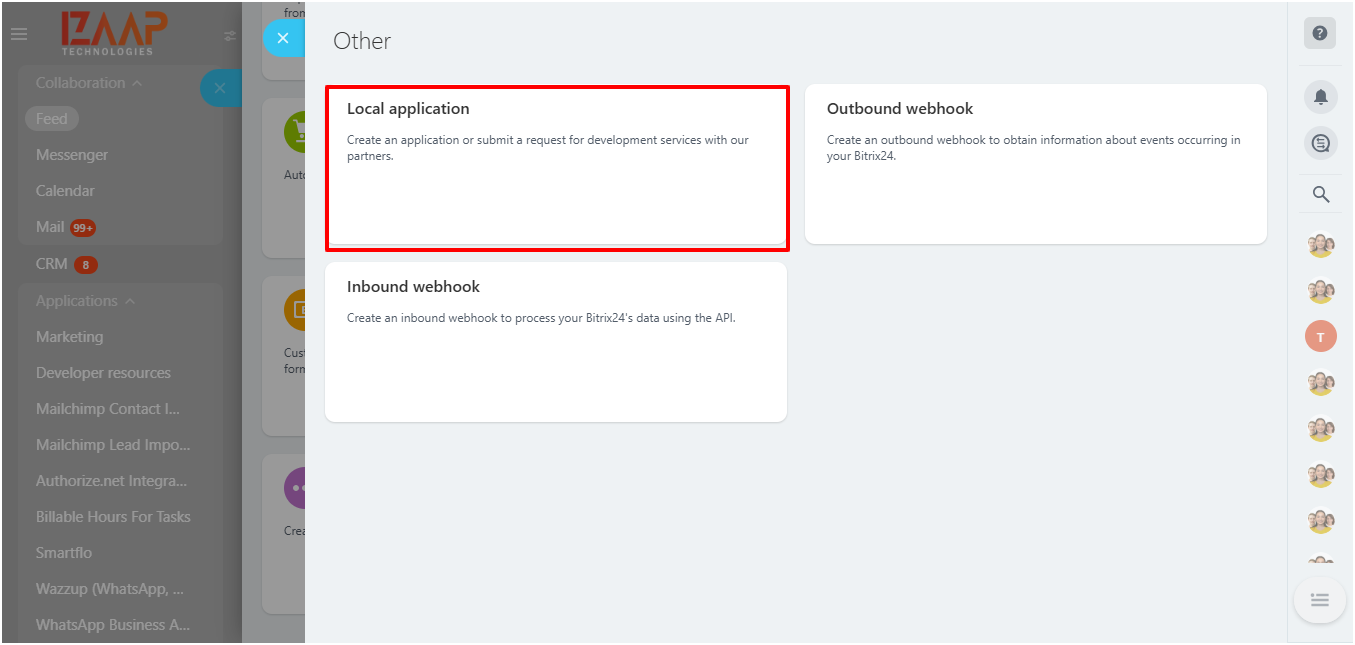
2. In the Common Use Cases tab, click the other option at the bottom of the page.
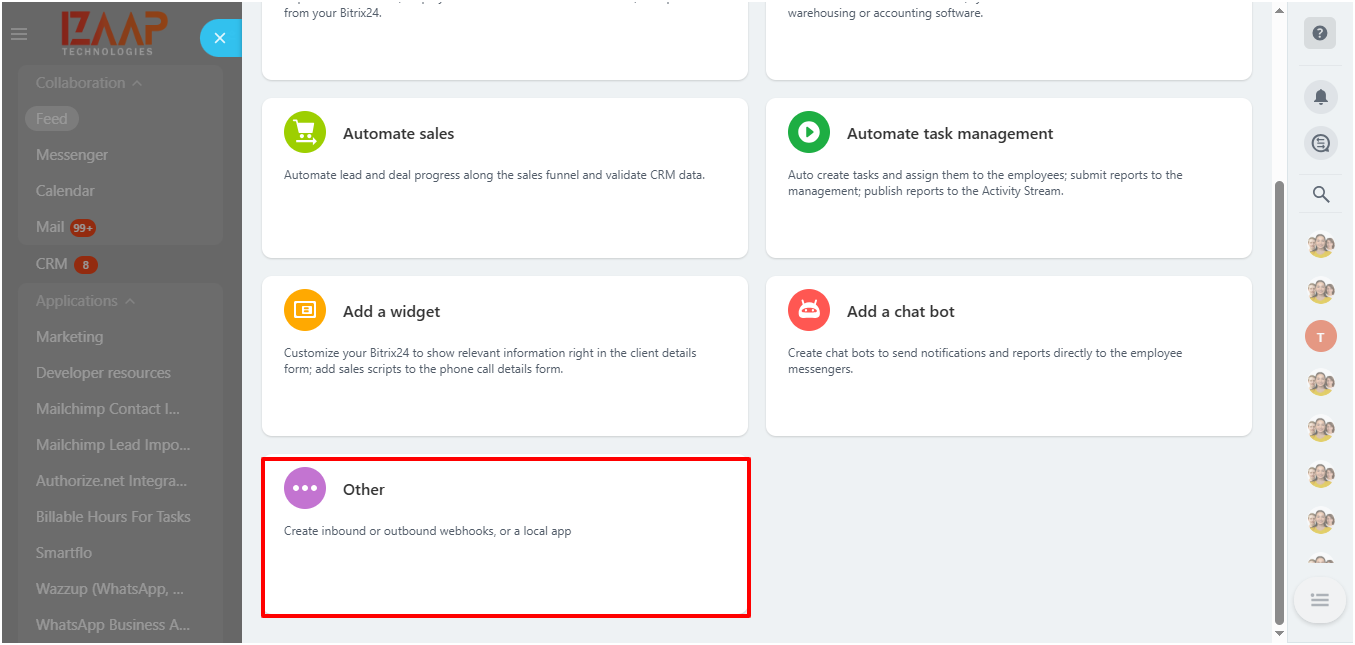
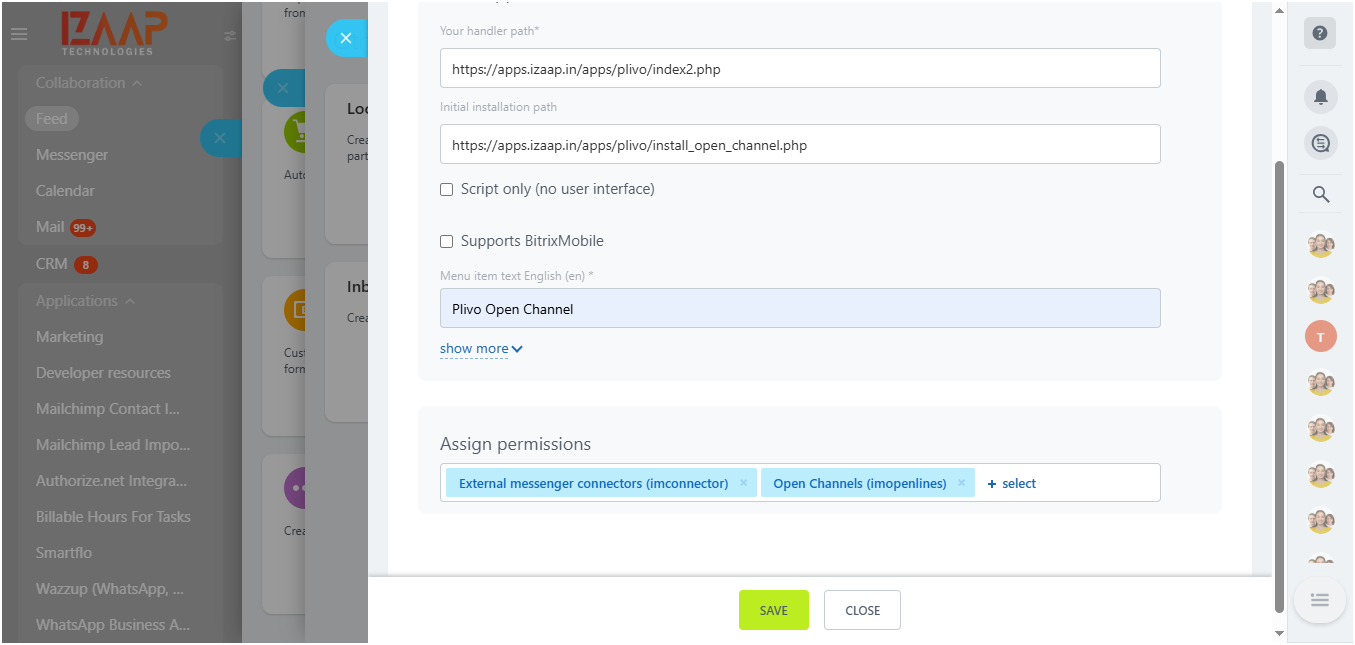
3. Choose the Local Application option and specify the configuration below on the application configuration page.
Your Handler Path - https://apps.izaap.in/apps/plivo/index2.php
Initial installation path - https://apps.izaap.in/apps/plivo/install_open_channel.php
Menu Item Text English (en) - Plivo Open Channel Application Configuration
Assign permissions - External messenger connectors (imconnector), Open Channels (imopenlines)
After entering the configuration information above, click the 'Save' option at the bottom of the page.
4. After a successful save, copy the application client ID and secret key. Once copied, click the 'Reinstall' option on the same page to install the app and ensure you receive the success message. Then, paste the copied client ID and client secret in the 'Application Client ID' and 'Application Client Secret Key' fields on the Plivo Marketplace app index page.
5. Go to the contact center page and select the Plivo open channel connection. Link: (https://
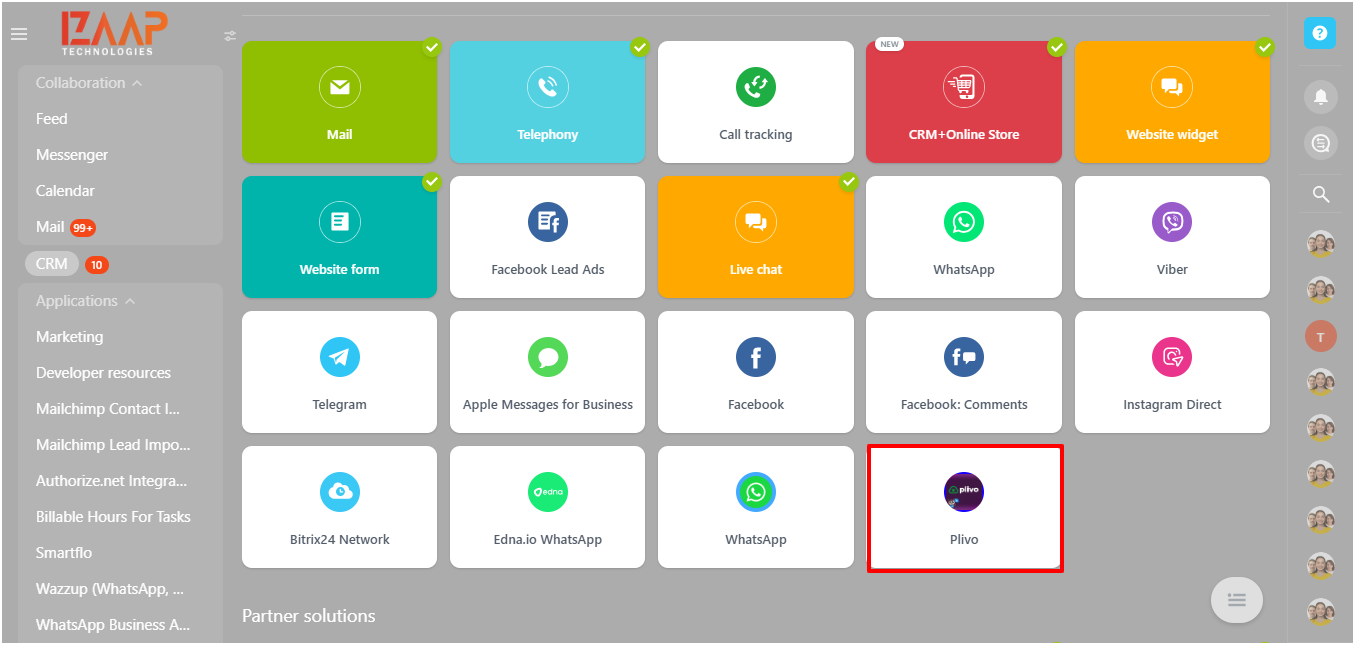
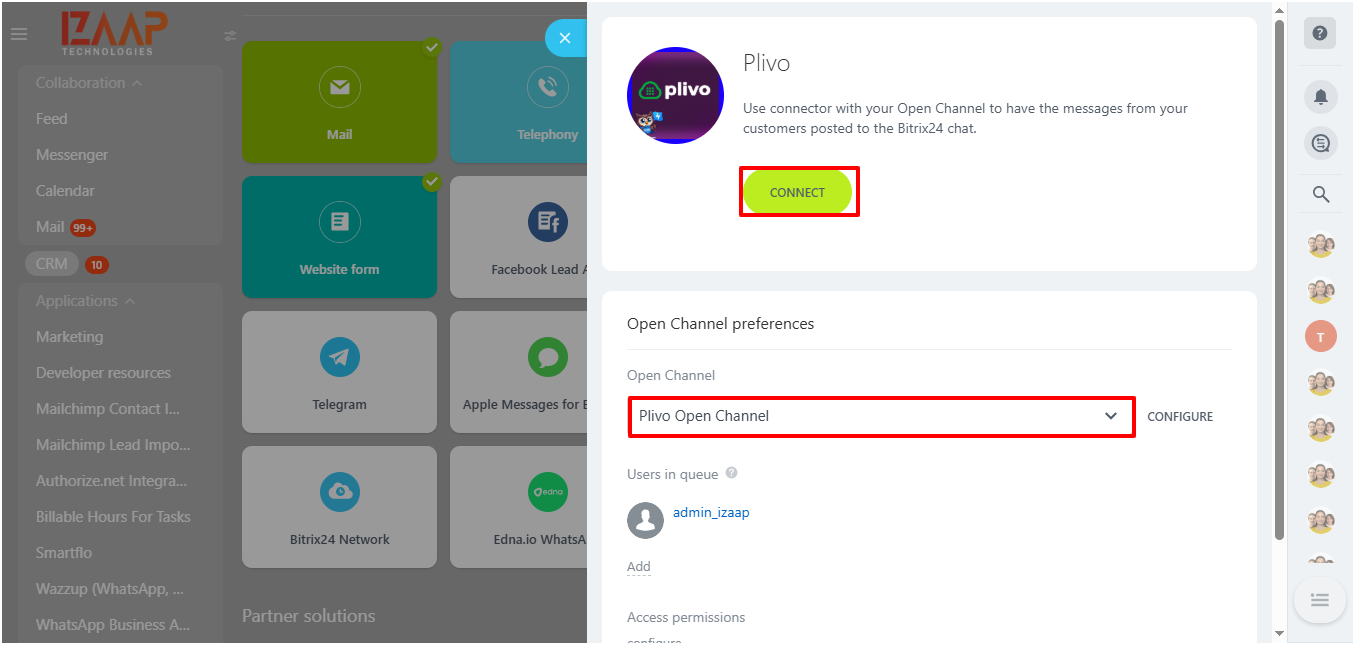
6. Choose Plivo open channel' from the open channel dropdown and click 'Connect.' After a successful connection, you can use this open channel to receive SMS from your customers via Plivo and respond back in the open channel. You can use the 'Configure' option in the open channel to adjust the necessary settings based on your needs. On the open channel configuration page, select 'Plivo' as the CRM source from the source dropdown list.